
Easy Dairy Sales and Marketing
Route sales, distributors and dealers, bulk and special orders: priced, billed with GST, delivered, collected and analysed in one system, with your sales team working from the app.
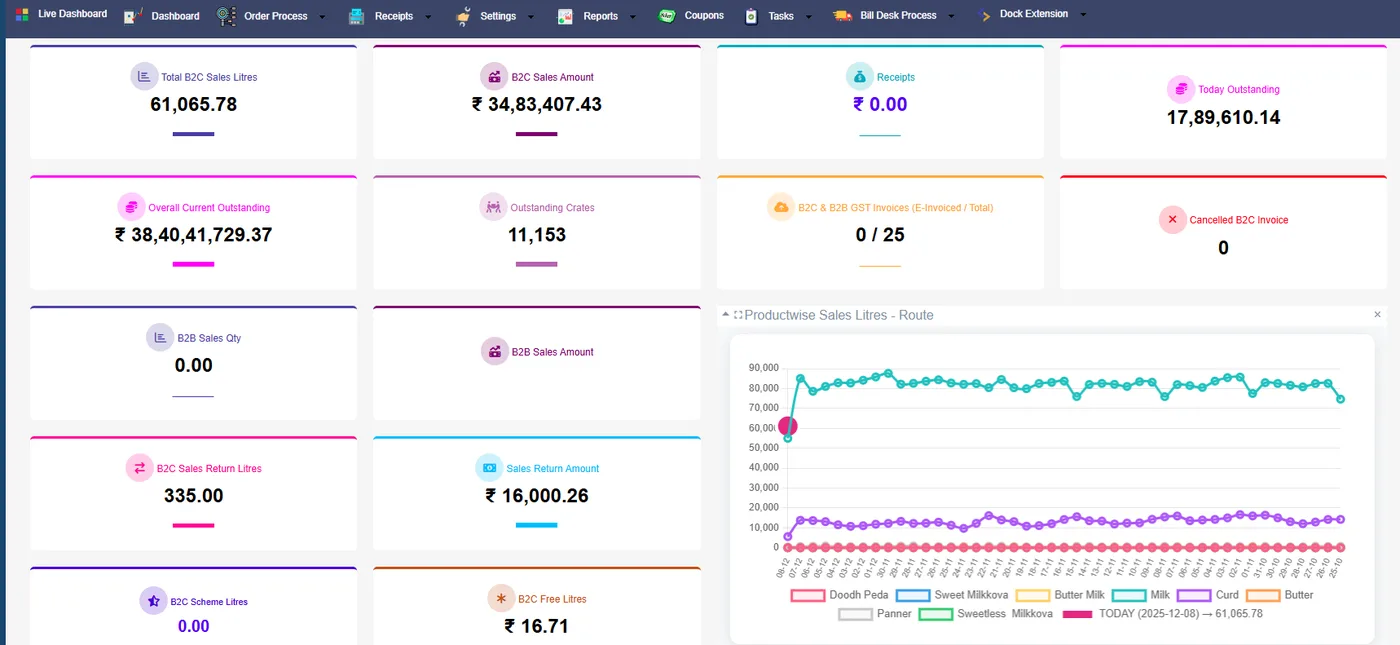
Easy Dairy Sales and Marketing runs the whole sales side of a dairy: setting up customers and dealers, pricing and schemes, taking the day’s indent, dispatching by route with crates, billing with GST, collecting payments and returns, and reporting it all back to the sales team and management. It is written for distributor, dealer, institution and bulk sales, the way Indian dairies sell.
EasyBIS has built EasyDairyERP for Indian dairies since 2015. About 90% of what dairies ask us for is already in the product; for the other 10% or so, if it is genuinely needed, we build it, and monthly updates come at no extra cost. Below, every area is explained point by point with its real screen. For a quick visual walk-through, each section links to its chapter in the demo tour.
MastersCustomers, dealers and sales points
Every sale starts from clean masters. Organisation units, products, docks, sales points, routes and customers are set up once, and each customer is tied to a route, a sales point and the people who look after them.
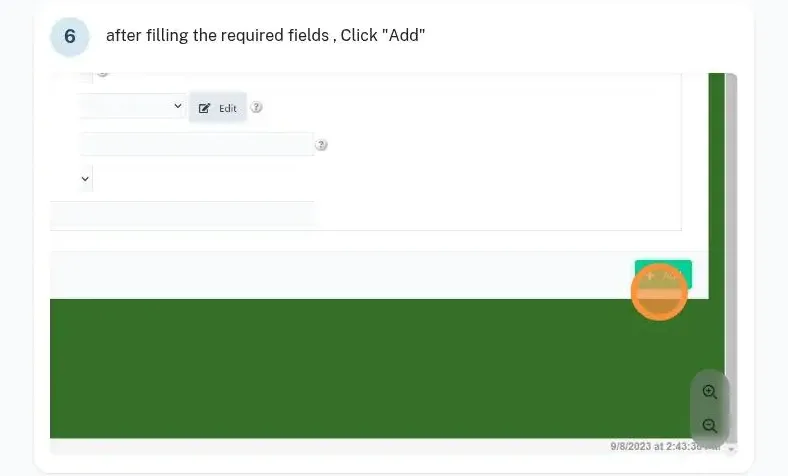
Organisation units
Each plant, branch or company is an organisation unit, so masters, prices and reports stay separate where they need to.
Step-by-step guide ↗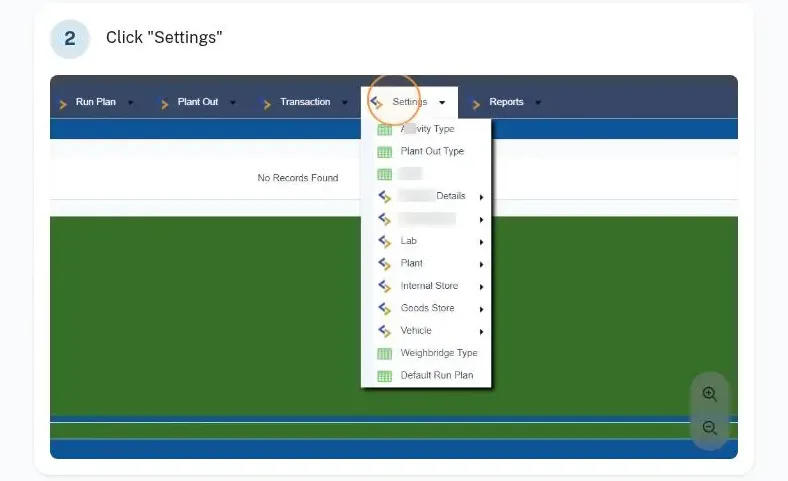
Brands, products, varieties and variants
Products are held as brand, product, variety and variant, with bar codes, HSN codes and marketing names, so billing and reports break down the way you sell.
Step-by-step guide ↗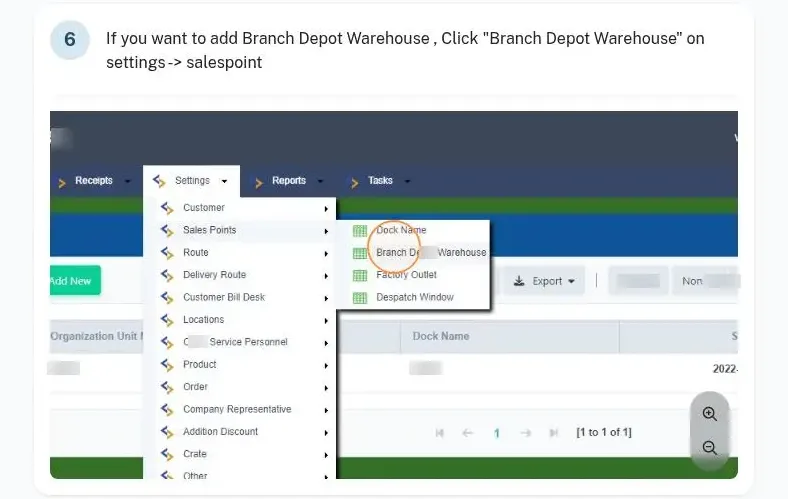
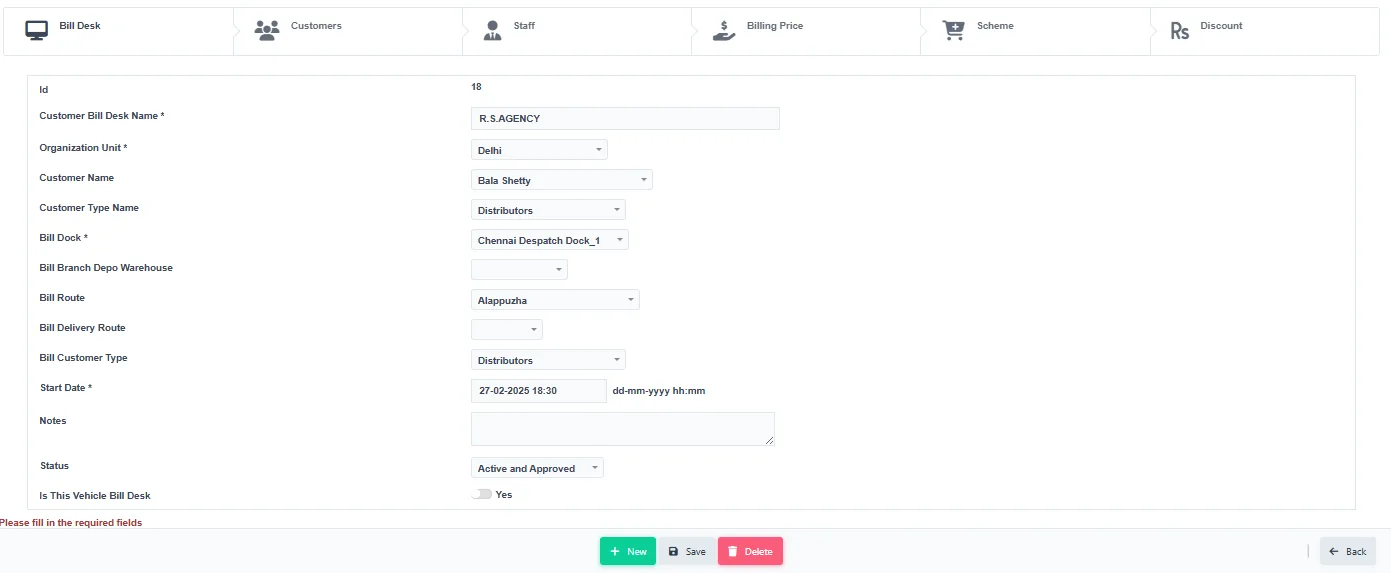
Docks and sales points
Docks, branches, depots, warehouses and factory outlets are sales points, each with its own dispatch windows.
Step-by-step guide ↗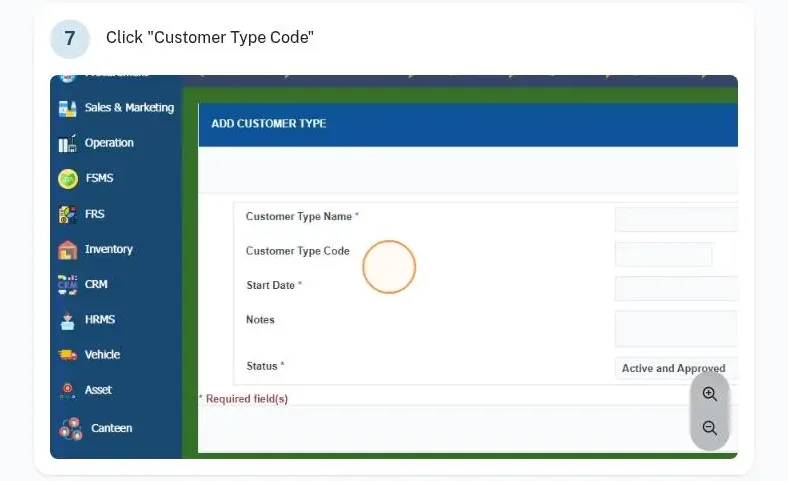
Customer types and onboarding
Dealer, distributor, sub-dealer, institution and bulk customer types, with KYC, business profile, security deposit and billing and shipping addresses with location.
Step-by-step guide ↗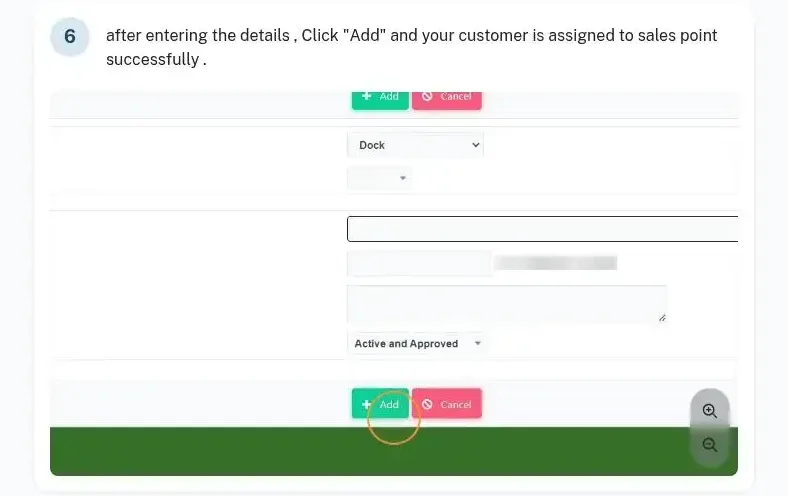
Customer to sales point and route
Each customer is mapped to the sales point and route that serves them, so order books and dispatch load correctly every day.
Step-by-step guide ↗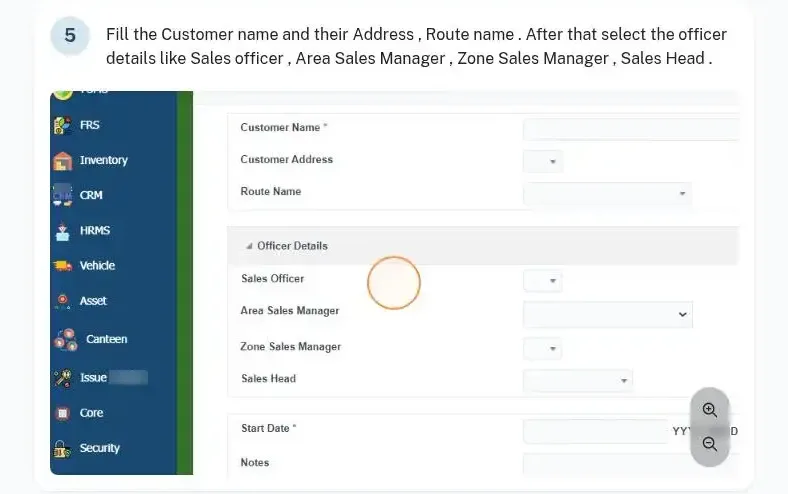
Sales hierarchy for every customer
Company representatives (SO, ASO, ASM, RSM, ZSM, marketing manager, sales head) are mapped to customers, so every report and approval follows the hierarchy.
Step-by-step guide ↗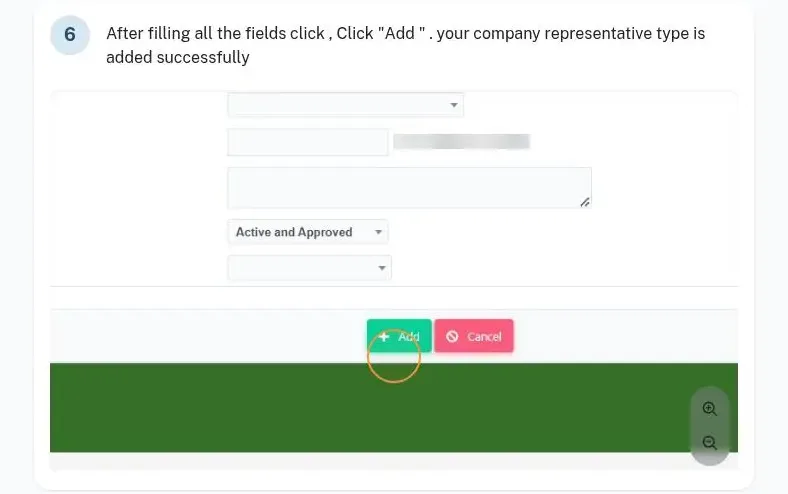
Company representatives and service personnel
Representatives carry volume, amount, crate and attendance reporting lines; vehicle boys and drivers are kept as service personnel for route payments.
Step-by-step guide ↗PricingPricing, schemes, discounts and incentives
Prices and schemes are rules in the system, not spreadsheets. MRP, tax, billing prices, discounts, free goods and incentives are applied the moment an order is billed.
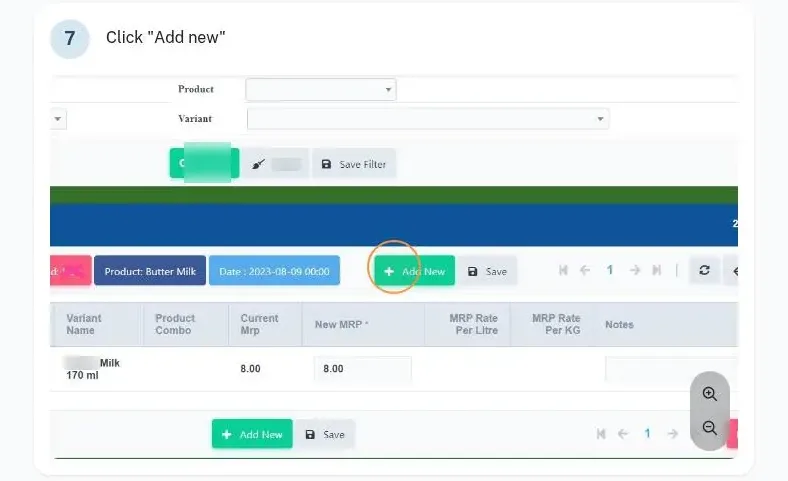
MRP and tax on MRP
MRP is set per variant with its tax, so every invoice carries the right GST from the start.
Step-by-step guide ↗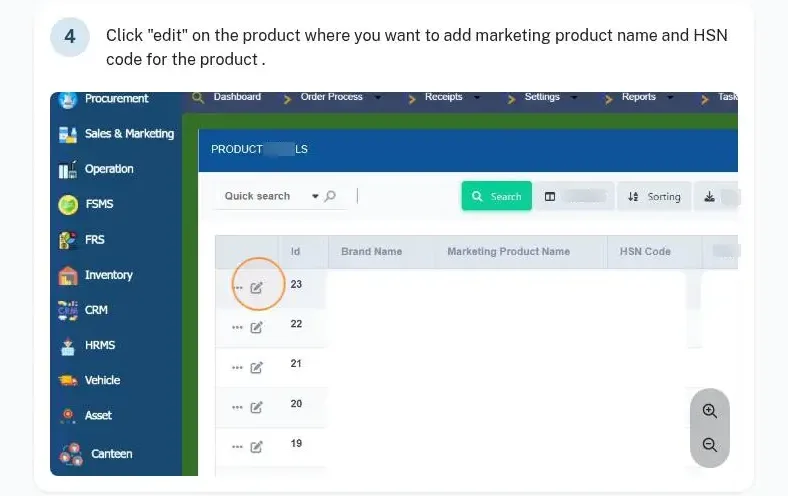
HSN codes and marketing names
HSN codes and marketing names are kept on the product, ready for GST returns and printed bills.
Step-by-step guide ↗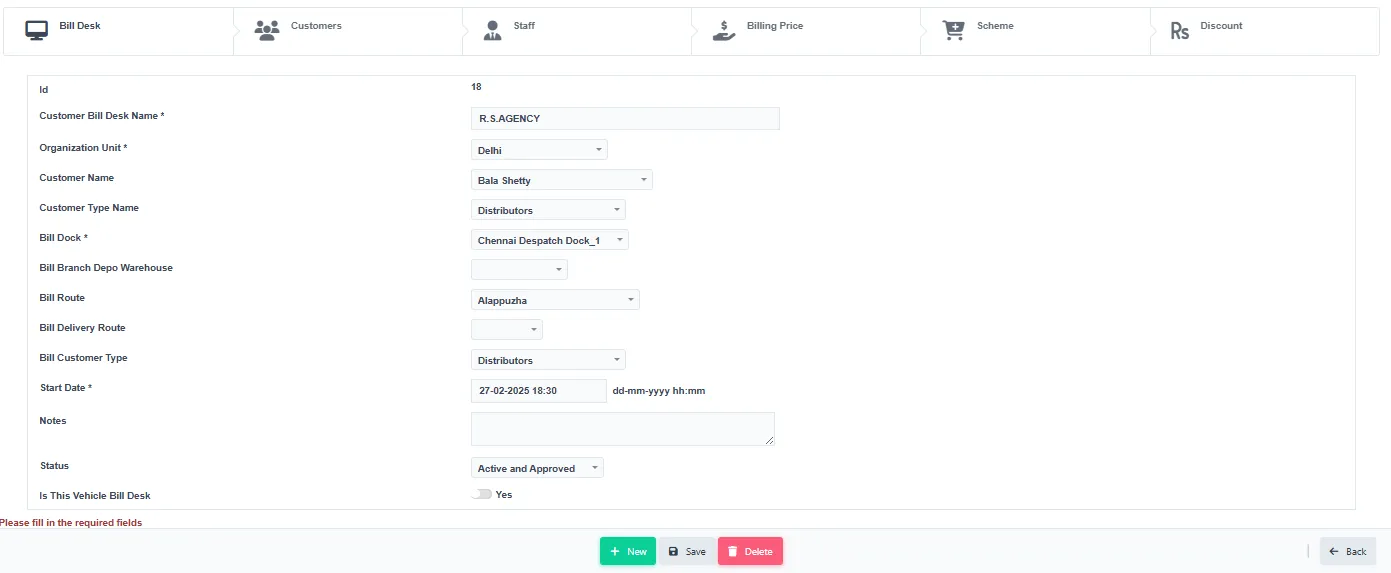
Rate control by litre, crate, customer or route
Billing prices can be set by litre, by crate, per customer or per route, with effective dates.
See how in the Docs →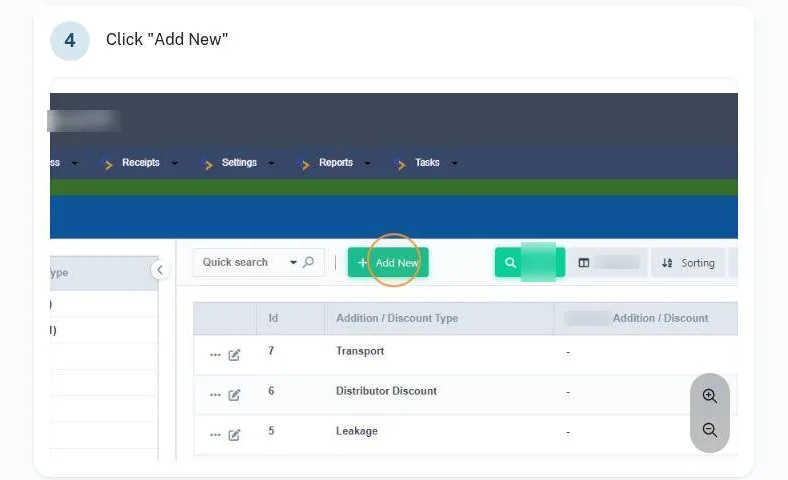
Additions and discounts
Discounts and additions per SKU, litre, kg or percentage, before or after tax, at product or bill level, with volume slabs and secondary transport amounts.
Step-by-step guide ↗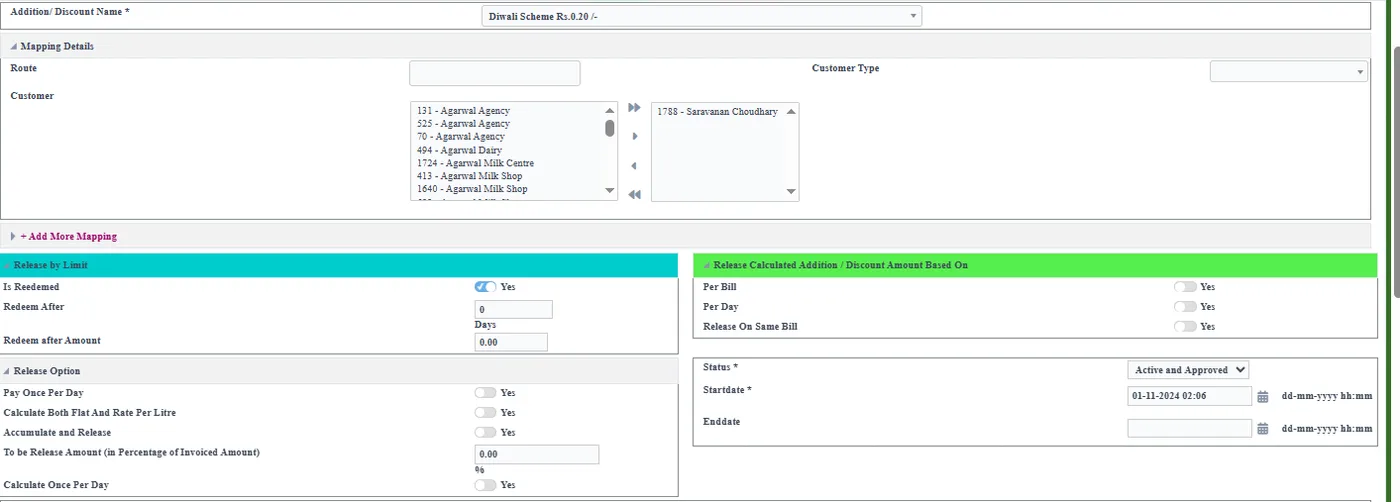
Trade discount schemes
Daily, fortnightly, monthly, random and slab-wise trade discounts, mapped to the customers they apply to.
Step-by-step guide ↗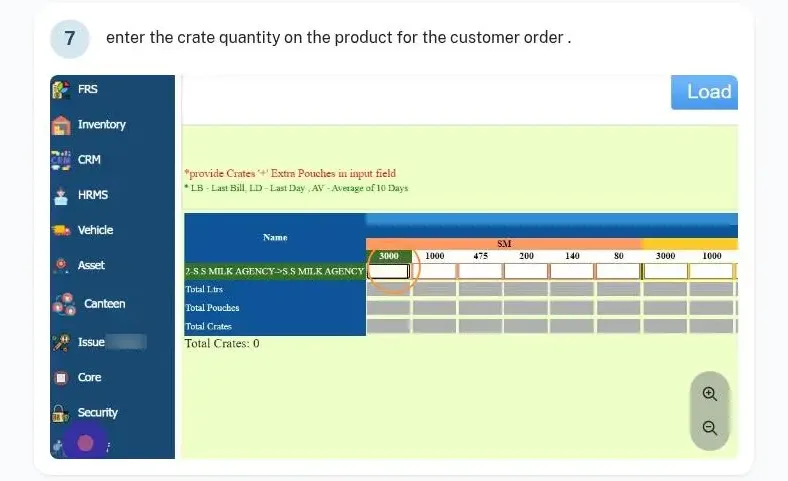
Free-product schemes and free samples
Free product on billed product is calculated automatically, and free samples are accounted for separately.
Step-by-step guide ↗- Distributor and dealer incentives. Advanced and slab incentive plans for distributors and dealers, with incentive and discount statements.
- My Earnings for distributors and dealers. On mobile, each distributor or dealer sees what they earned from the dairy: bill difference, discounts by scheme name and free goods, only for their own released figures.
OrdersIndents and orders
The day’s indent comes from the desk, from the sales team in the field and from distributors and dealers on their phones. Order books, quick-fill helpers and approvals keep it fast and accurate.
- Open the new business day.
- Order Process → 1A. Order Book – Customer: pick the route and customer.
- Choose Daily, Adhoc/Special or Order plan, then Load.
- Enter crates, extra packs and scheme extra; litres, final pouch and final crate fill in.
- Save. The order moves to Prepare to Despatch.
Open new business day and anytime day closure
The sales day is opened once and closed when you are ready, with invoice date forwarding when needed.
See how in the Docs →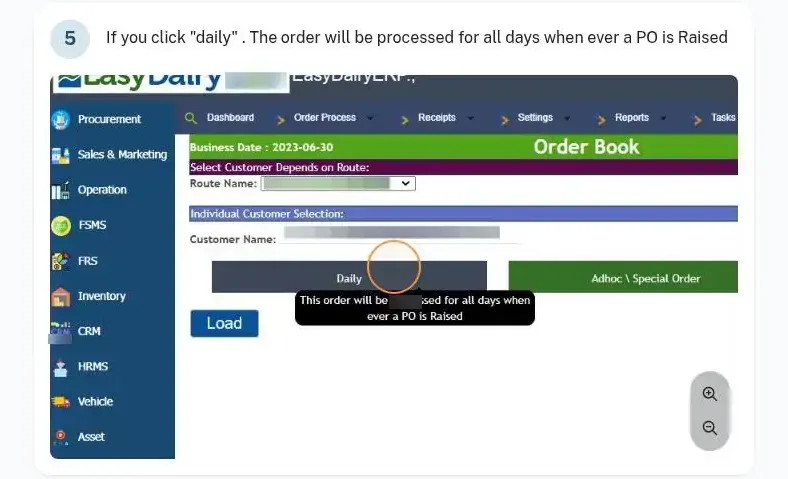
Order book by customer and by route
Daily standing orders, one-day special orders and multi-date order plans, entered per customer or for a whole route.
Step-by-step guide ↗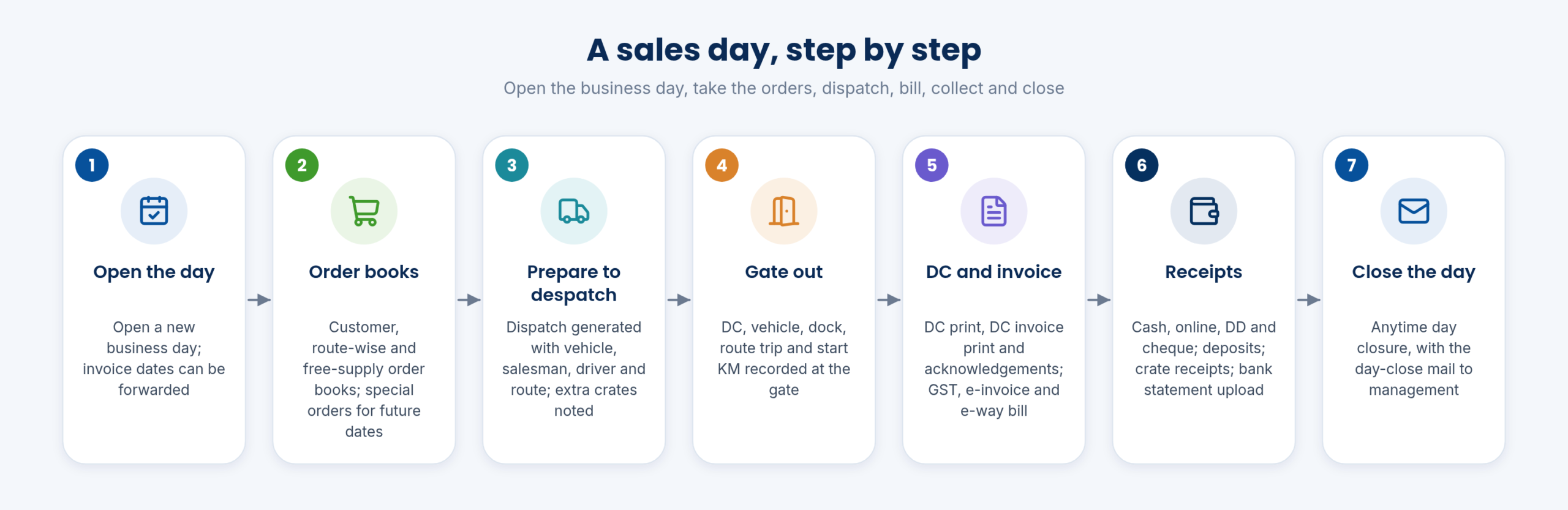
Four order screens
Crates, SKUs, litres with crates, and litres, so each customer is ordered in the unit they buy in.
Quick-fill from history
Last bill and the customer sales average fill regular orders in seconds.

Order and approval types
Sales order types and approval statuses set who approves what, with order deviation approvals by the ASO.
Step-by-step guide ↗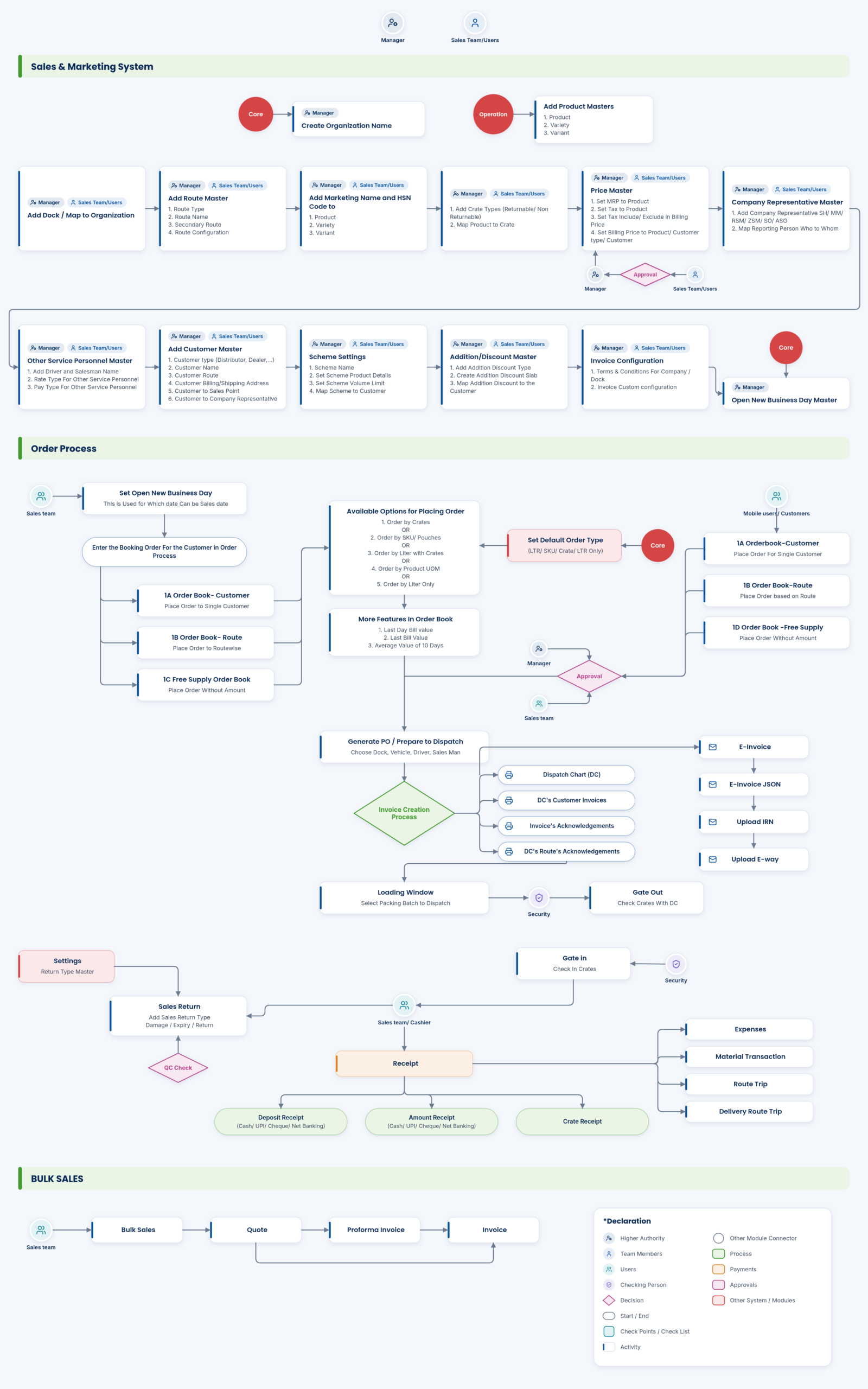
Retail, bulk and special orders
Bulk sales run quote → proforma → invoice, alongside route and retail sales and future-dated special orders.
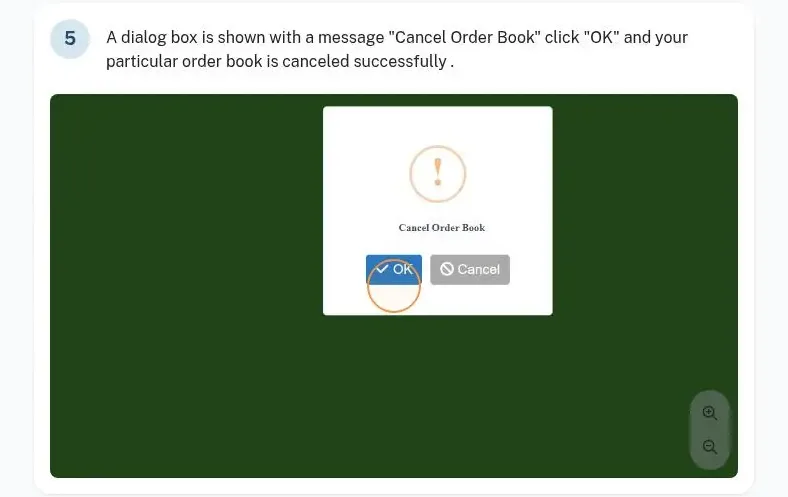
Cancellations with a reason
Orders and purchase orders are cancelled with a recorded reason, so every change is explained.
Step-by-step guide ↗DispatchDispatch, routes and crates
Orders become dispatches by route and vehicle. Crates, gate movements, kilometres and route trips are recorded, so what left the plant is matched with what came back.
- 2. Prepare to Despatch: tick the orders, Generate Dispatch with vehicle, salesman, driver, route and dispatch window.
- 3. DC Details: print the DC, DC invoice and acknowledgements.
- 4A/4B. Loading window by dock and vehicle.
- 5A. Gate Out with DC, vehicle, start km and crates out by type.
- 5. Gate In with end km and crates in.
Routes and route types
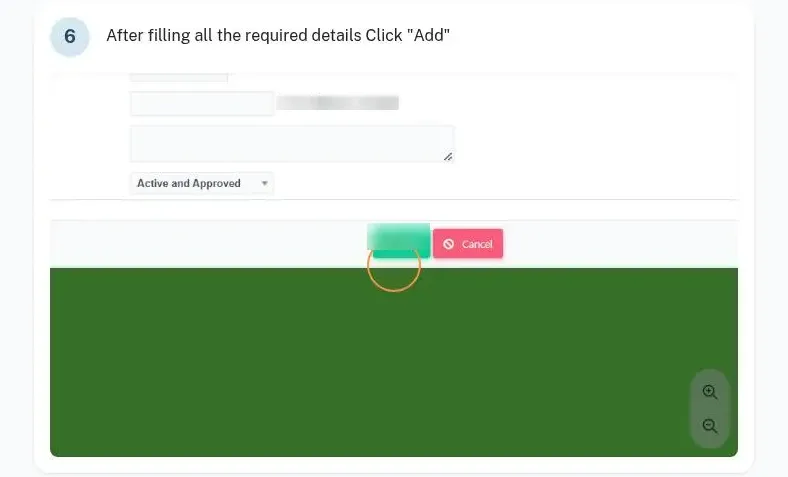
Routes and route types are masters, with forward and reverse customer sequences.
Step-by-step guide ↗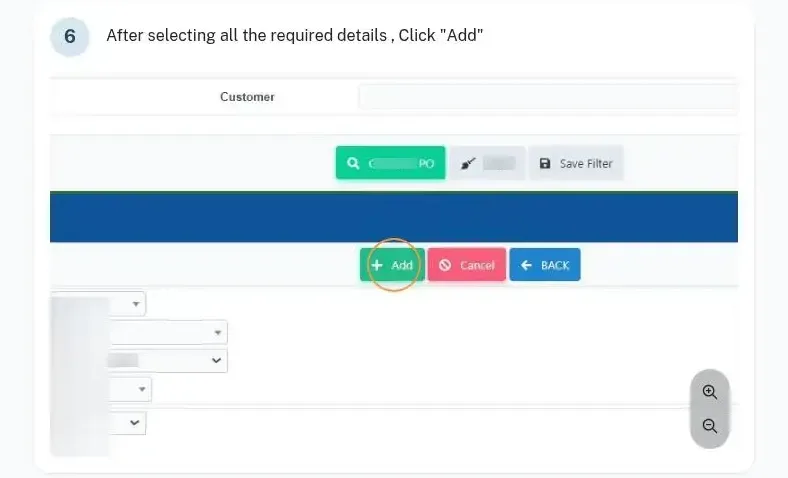
Generate dispatch
Orders are grouped into a dispatch with vehicle, salesman, driver, route and dispatch window; extra crates given are noted.
Step-by-step guide ↗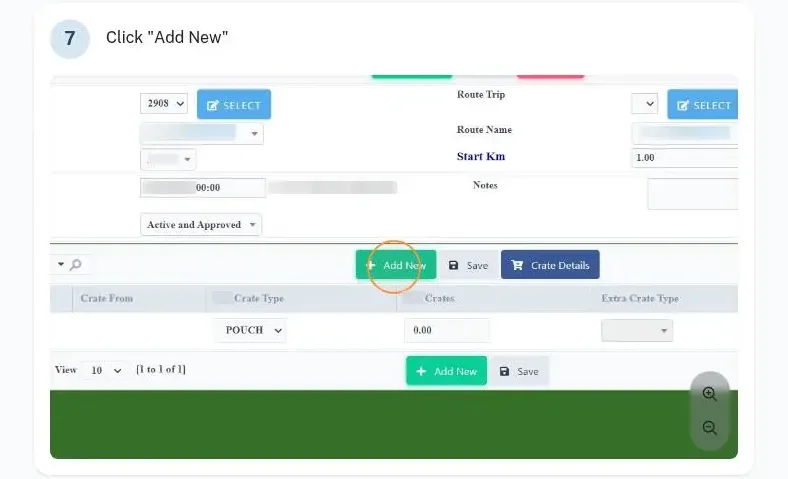
Gate out
Gate out records the DC, vehicle, dock, route trip, start km and crates out by type (can, cup, ghee, pouch).
Step-by-step guide ↗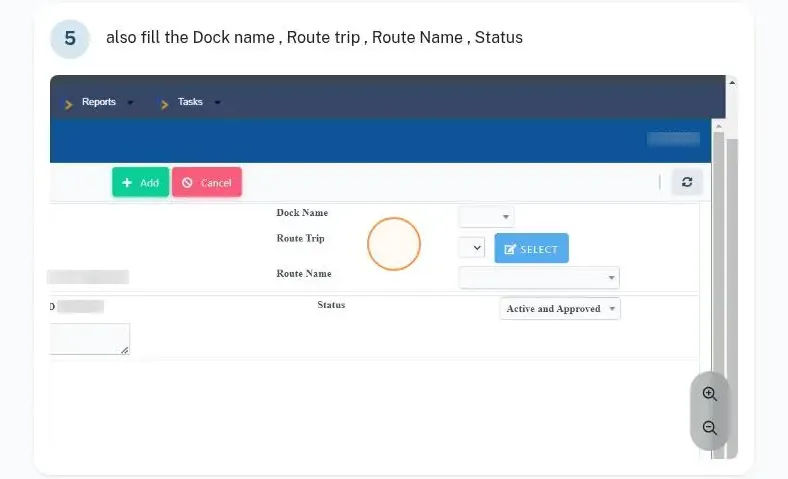
Gate in
Gate in closes the trip with end km and crates returned, checked against what went out.
Step-by-step guide ↗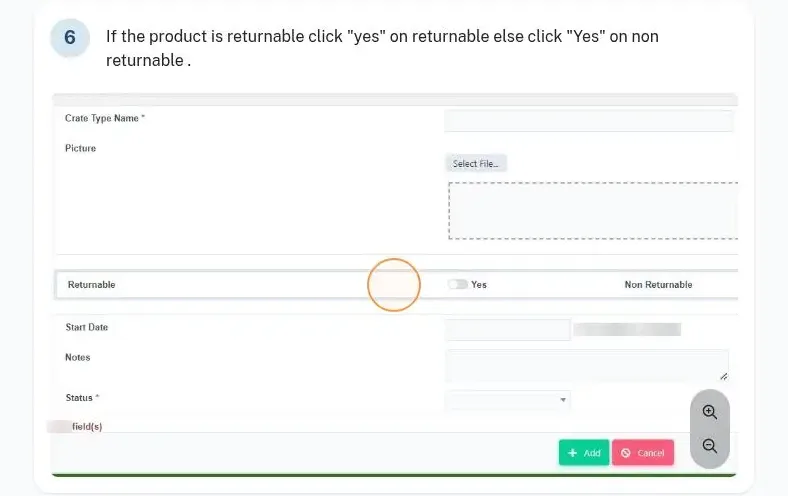
Crate types and product to crate
Returnable and non-returnable crates are mapped to each product variant with quantity, litres and kg.
Step-by-step guide ↗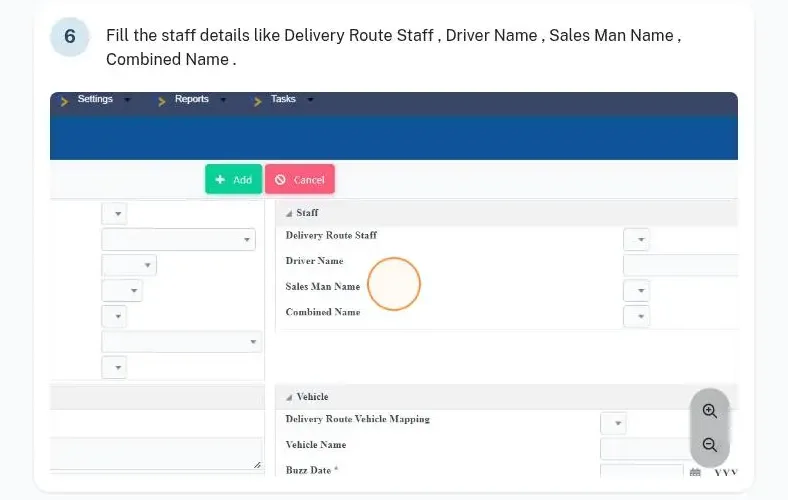
Route trips and delivery route trips
Route trips carry kilometres and customer sequence; delivery route trips add staff, bill devices and a sequence check.
Step-by-step guide ↗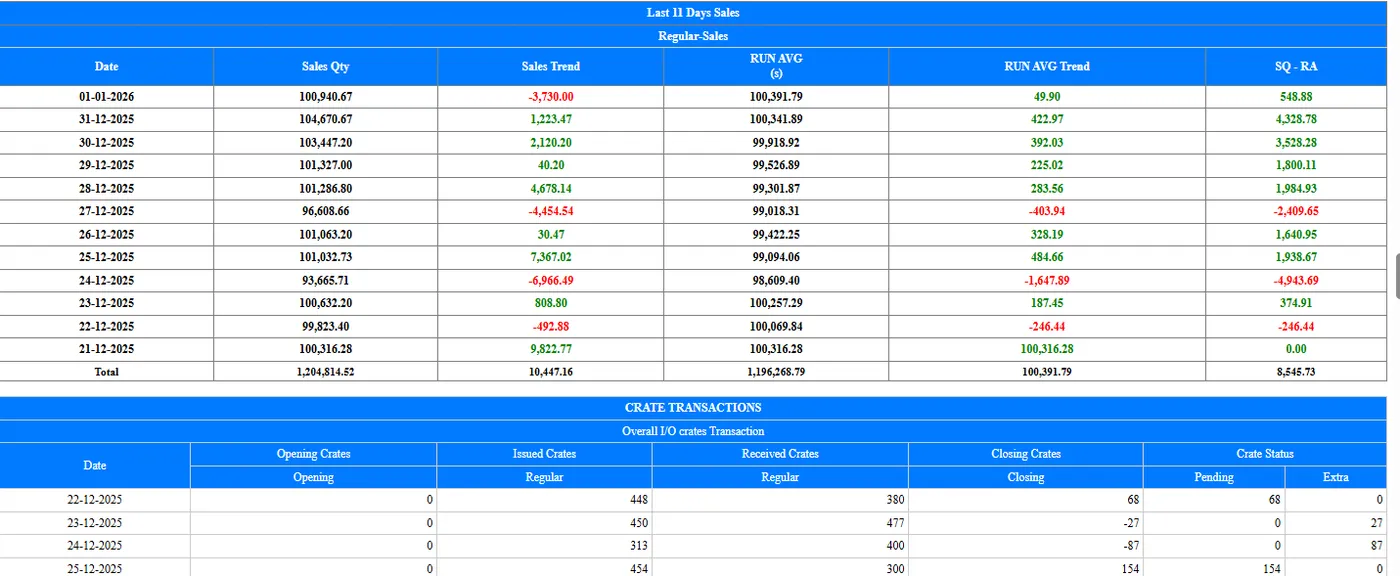
Crate and freezer tracking
Crate receipts by customer and freezer deposits and returns keep assets in the market accounted for.
Outward transport costing and vehicle boy payments
Secondary and outward transport costs and vehicle boy payments are calculated from the trips.
BillingInvoicing and GST
Invoices are generated from the dispatch, with GST worked out for inter- and intra-state sales and e-invoice and e-way bill handled through the API.
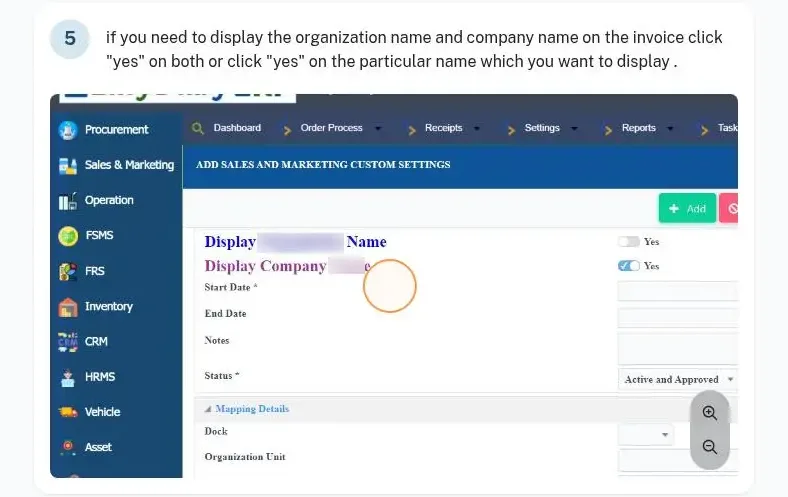
Invoice configuration
Invoice formats and numbering are configured per branch, depot or warehouse, with organisation and company names on the print.
Step-by-step guide ↗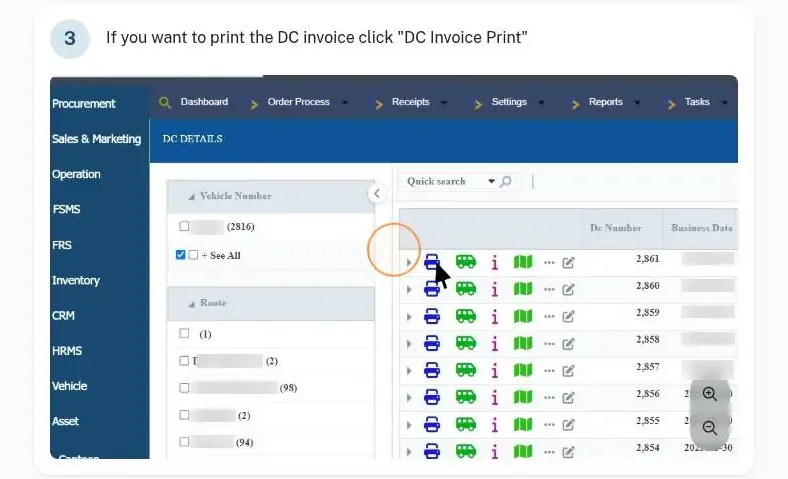
DC and invoice printing
DC, DC invoice, invoice acknowledgement and DC route acknowledgement print from one screen.
Step-by-step guide ↗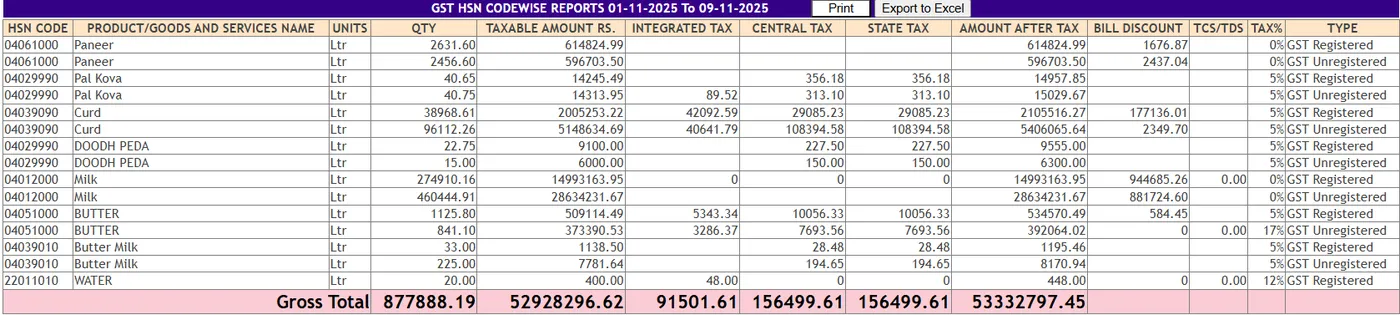
GST, e-invoice and e-way bill
Inter- and intra-state GST billing, e-invoice through the API, e-way bill and automated GSTR-1 reports.
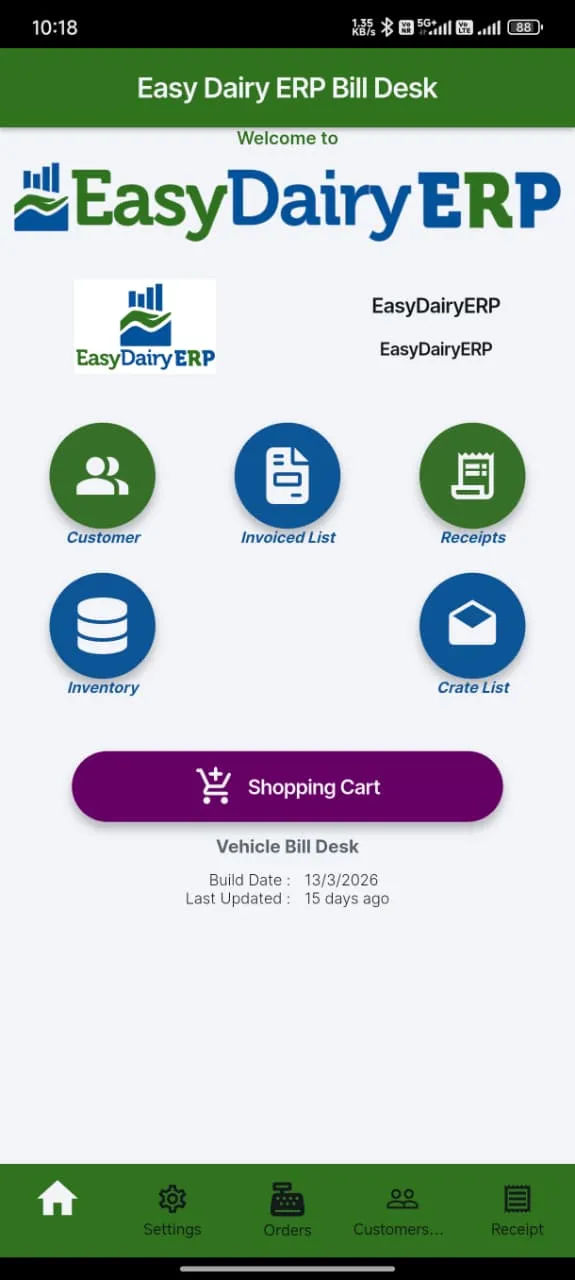
Mobile vehicle bill desk
On the route, invoices, receipts and the crate list are handled from the mobile bill desk.
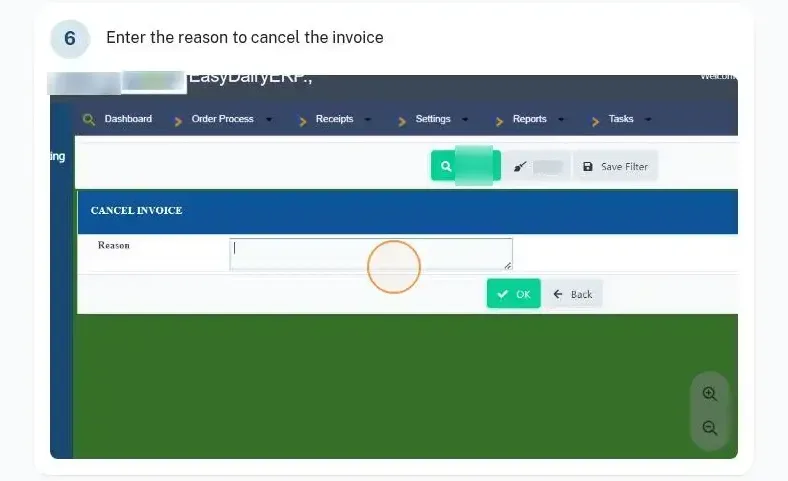
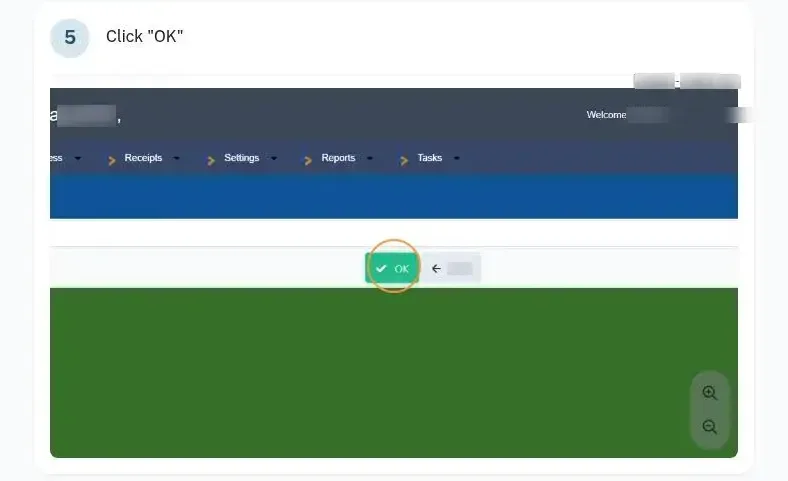
Invoice cancellation with reason
Invoices are cancelled with a reason recorded, keeping the GST trail clean.
Step-by-step guide ↗- Tally export. Sales vouchers are exported to Tally for the accounts team.
CollectionsCollections, credit and returns
Credit is controlled before billing, not after. Limits, receipts, cheques and returns are all in the same customer ledger.
Sales returns
Returns are recorded against the sales order with a return type: crates, litres, kg, numbers, scheme quantity and discount.
Step-by-step guide ↗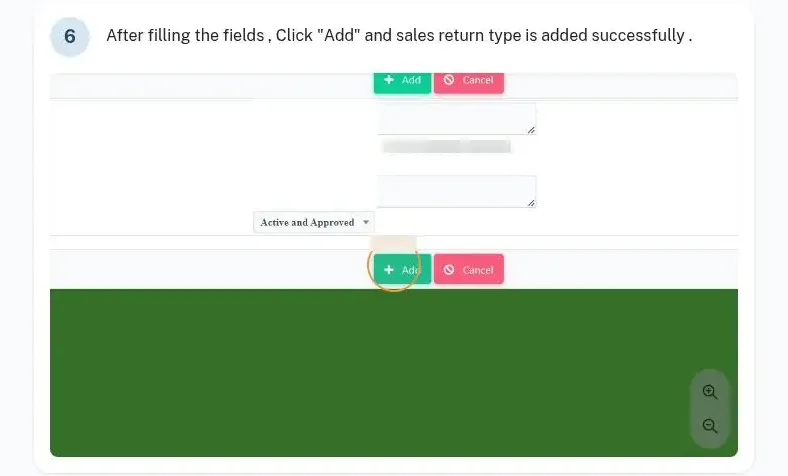
Sales return types
Return types are set up once and used on every return for clean reporting.
Step-by-step guide ↗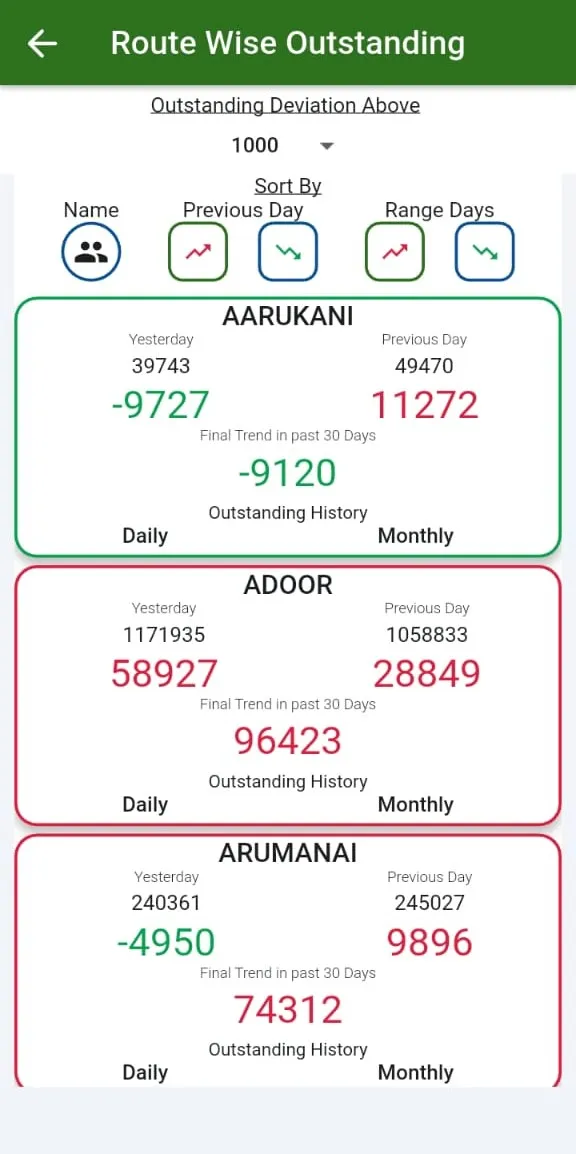
Ledger, credit flow and realisation
Customer ledger, overall credit flow and date-wise and route-wise realisation reports.
- Credit limits with automatic stop billing. A customer over the limit is stopped at billing, with dynamic approvals when an exception is needed.
- Receipts by every mode. Cash, online, UPI, DD and cheque receipts, with deposit and cheque handling.
- Bank statement upload. Bank statements are uploaded to post receipts in bulk.
InsightSales BI, reports and daily mails
The sales team and management see the same numbers, every day, without asking for them. Details are on the BI Report on Sales and Sales Screens pages.
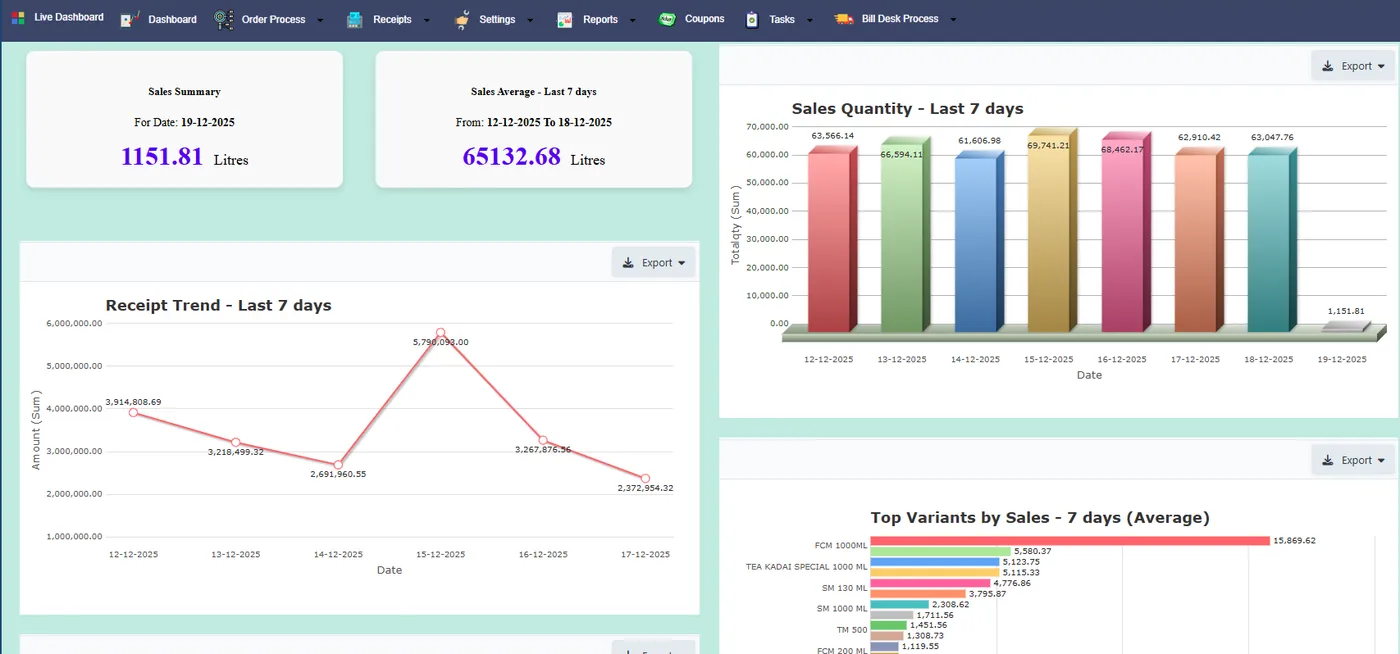
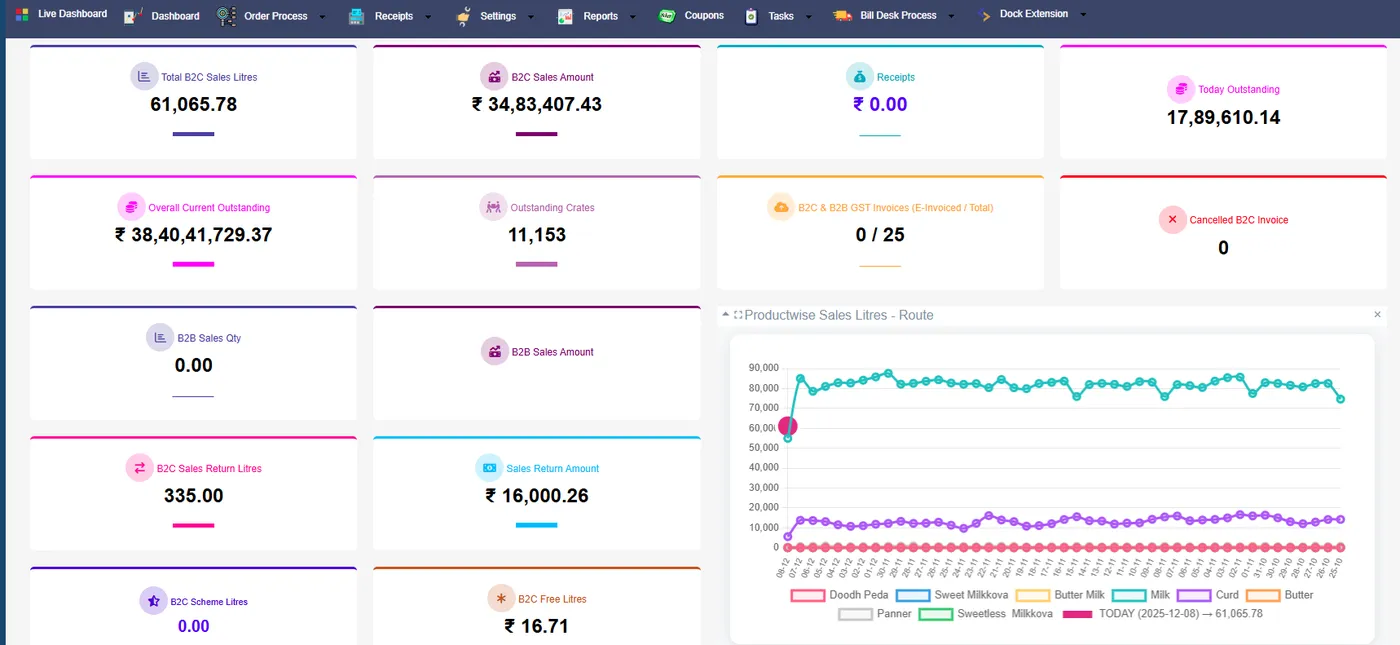
Live dashboard and 7-day trend
Today against the last seven days, by product, route and dock.
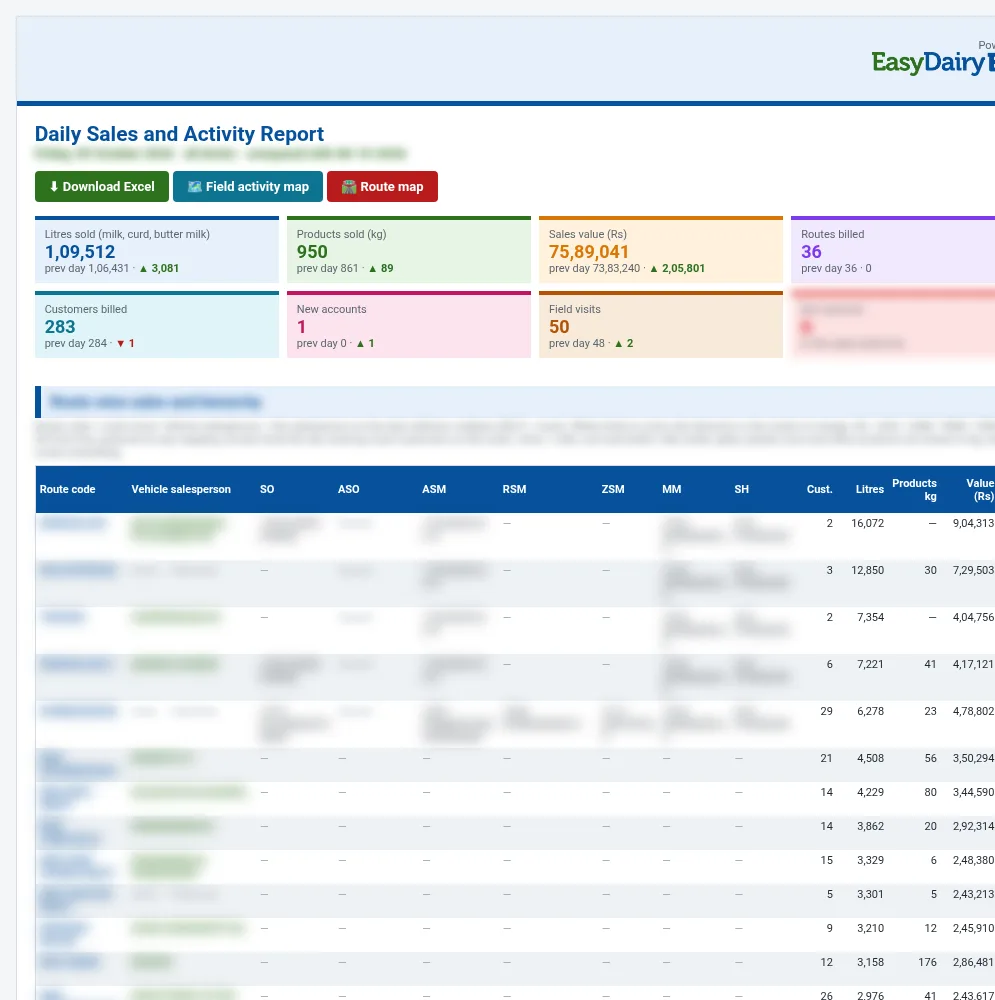
Daily Sales and Activity Report
A mail after the daily sales mail: route-wise litres, value and change, the salesperson and hierarchy, new accounts and route trips.
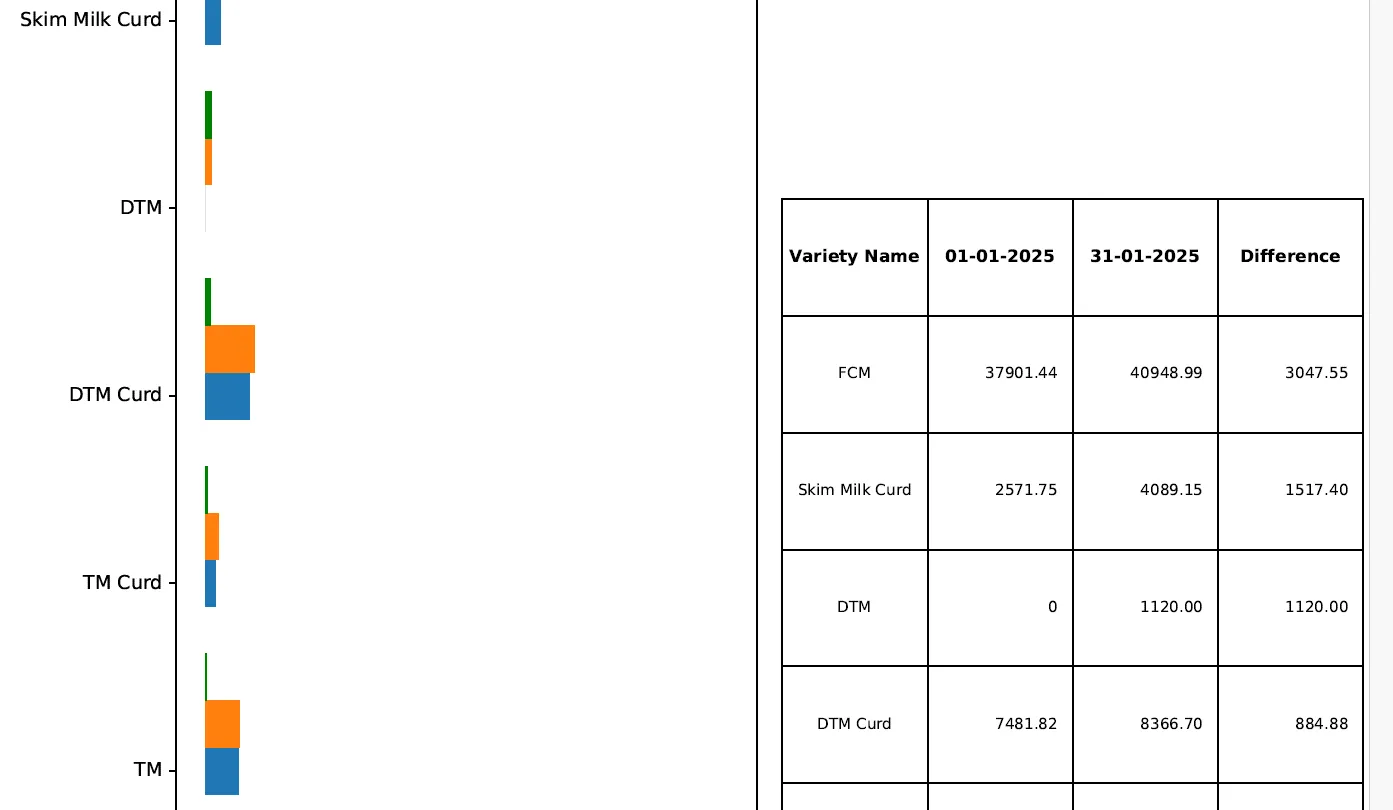
Trend change by SKU and route
Where volume is growing or falling, by SKU, route and dock.
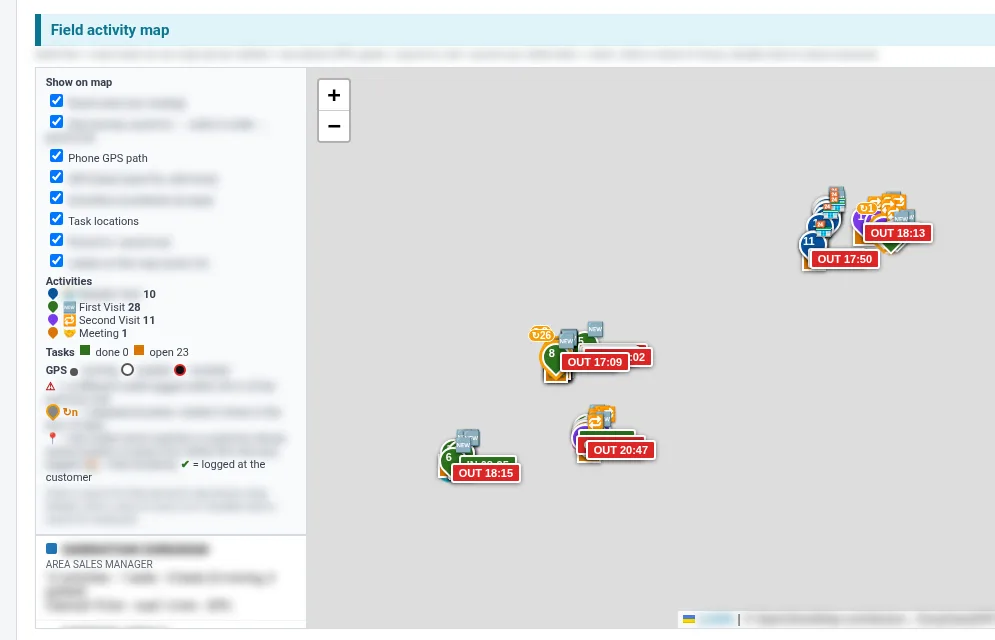
Field activity map
The sales team’s day on a map: punch-in and out, visits, road km against claimed km.
Keep exploring at your own pace
Every module page walks through the screens, reports and mobile apps in the same way, so you can see exactly how EasyDairyERP fits your dairy.
When you have seen enough, we are happy to show it to you live on our sample data: book a demo or call +91 94880 59495.