
Inventory Management System | Stores
Interactive step-by-step Scribe guides for the stores module: masters and settings, the procure-to-pay flow from request to invoice, and stock corrections.
How the stores flow fits together
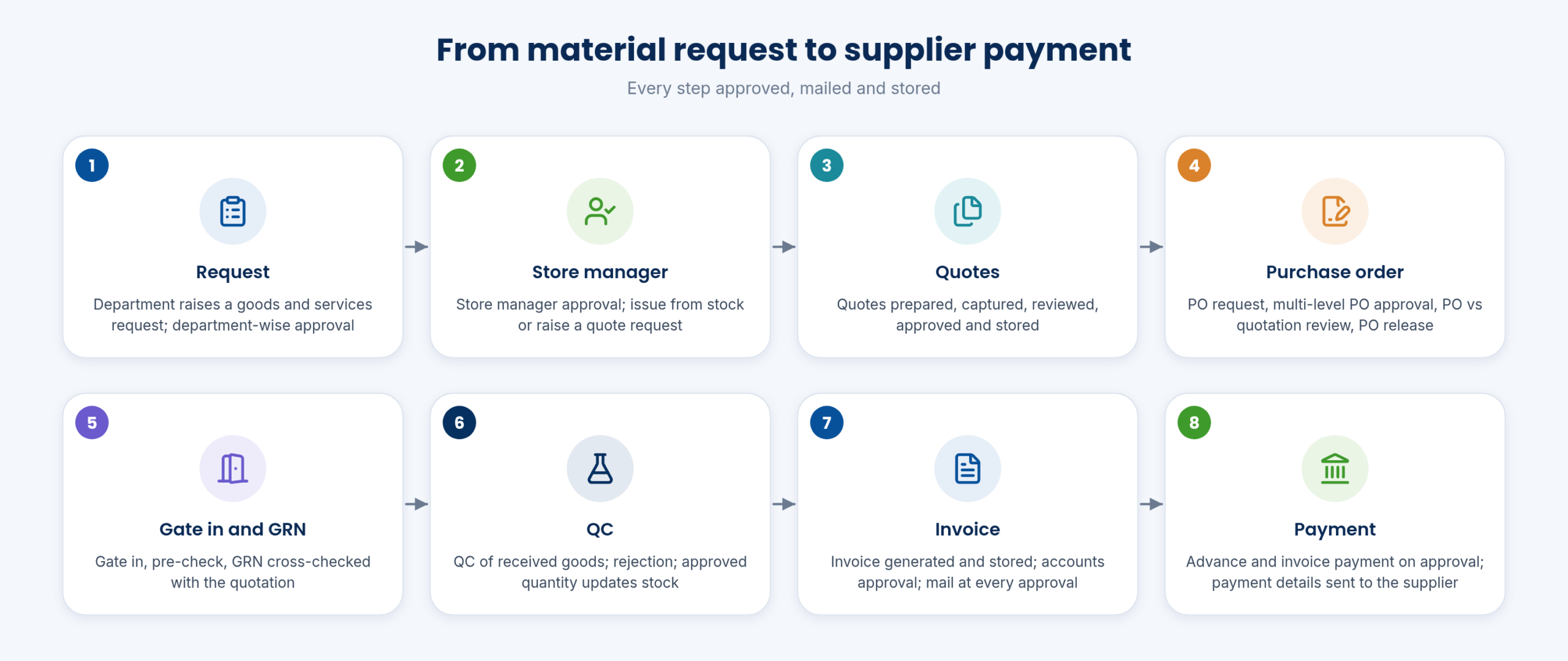
Request → department approval → quote → purchase order → gate in → pre-check → GRN and QC → move to store → invoice → approval-based payment. Each step has its own guide below.
From material request to supplier payment
The workflow diagram shows every hand-over and who approves it: user, department head, store manager, security, accounts.
- Every approval sends an email
- Only approved quantity goes into stock
- Requests and approvals also work on mobile
Masters and settings
Name, code, chapter code (first 2 digits of HSN), UOM, returnable flag, HSN, specifications, minimum store quantity and MOQ.
Add goods and services
Open in Scribe ↗Step summary (text)
- Click “Minimum Order Quantity”
- Click “Add New”
- Enter Minimum Quantity in Store.
- Enter Minimum Order Quantity.
- Click this dropdown ,Select UOM of the GS
- Select Start Date .
- Click “Add”
Settings → Store Location → Godown/Warehouse → Row Rack → Shelf/Box Bin, each with a start date.
Store locations: godown, row rack, shelf/bin
Open in Scribe ↗Step summary (text)
- Click “Settings”
- Click “Store Location”
- Click “Godown/ Warehouse”
- Click “Add New”
- Enter Godown/ Warehouse Name
- Enter Location Name.
- Set Start date.
Settings → Payments: terms such as payment against delivery with days and %, schedule types, payment types and modes.
Payment terms, schedule types, types and modes
Open in Scribe ↗Step summary (text)
- Click “Settings”
- Click “Payments”
- Click “Payment Terms”
- Click “Add New”
- Click this field to Enter Payment term .
- Click “Set Start date “
- Click “Add to Save details”
Settings → Quote → Quote Approval Status / Quote Type → Add New.
Quote approval status and quote type
Open in Scribe ↗Step summary (text)
- Click “Settings”
- Click “Quote”
- Click “Quote Approval Status”
- Click “Add New”
- Click this text field to Enter Approval Status Name.
- Click “Set Start date “
- Click “Add to Save Details”
Gate number, gate in type, gate in document type and gate out type.
Gate in and gate out types
Open in Scribe ↗Step summary (text)
- Click “Gate Number”
- Click “Add New”
- Click “Easy Business Information Solutions”
- Set Gate Number
- Enter Location
- Click “Active and Approved”
- Click “Gate In Type”
Settings → Purchase Order / Sales Order: PO type, PO approval status, PO term type, SO type and status.
PO and SO types and approval statuses
Open in Scribe ↗Step summary (text)
- Click “Settings”
- Click “Purchase Order / Sales Order”
- Click “Purchase Order Type”
- Click “Add New”
- Click this text field to Purchase Order Type.
- Set Start Date.
- Click “Add to Save Details”
Inventory → purchase type, return type, store transaction type, document type, request type, line item type, issue type, purpose type.
Transaction, document and line item types
Open in Scribe ↗Step summary (text)
- Click “Inventory”
- Click “Purchase Type”
- Click “Active and Approved then Add”
- Click “Return Type”
- Click “Add New”
- Click here.
- Click “Store Transaction Type”
Procure to pay
Add a request with department head and quantity, then issue it: ready to issue, handed over, partially issued.
Goods and services request, department issue and quote request
Open in Scribe ↗Step summary (text)
- Click “Inventory”
- Click “Easy Business Information Solutions”
- Click “Goods and Services Request / Status”
- Click “Add New Request”
- Click “DEPARTMENT HEAD”
- Click “NEW REQUIREMENT”
- Enter Required Qty
Quote → Pending Quote → Move To Purchase → Pending PO → Approve PO → Generated Purchase Order.
Quote request to purchase order
Open in Scribe ↗Step summary (text)
- Click “Purchase Order”
- Click “Pending PO”
- Click this checkbox.
- Click “Approve PO”
- Click “Purchase Order”
- Click here.
- Click “Generated Purchase Order”
Gate In → Gate In Pre Check → Goods Received Notes → Move to Store → Invoice – Entry, then review quote-to-invoice.
Purchase order to invoice
Open in Scribe ↗Step summary (text)
- Click “OK”
- Click “Purchase Order”
- Click “Gate In”
- Click “Search”
- Click “Add New”
- Click “1 – Dairy Main Gate -“
- Click Org.,
Corrections
Settings → Store Stock Correction, by warehouse.
Stock correction entry
Open in Scribe ↗Step summary (text)
- Click “Settings – Store Stock Correction”
- Click “Add New”
- Click here.
- Click “Warehouse”
- Click “Add “
Settings → Major Stock Correction UOM.
Change the UOM across the system
Open in Scribe ↗Step summary (text)
- Click “Settings”
- Click “Major Stock Correction UOM”
- Click To Select Goods / Service
- Click to Select What UOM want to Change
- Click “Change The UOM Across The System to Change UOM”
Settings → Goods / Services Type Changes.
Goods or services type changes
Open in Scribe ↗Step summary (text)
- Click “Settings”
- Click “Goods / Services Type Changes”
- Click to Select Goods and Service Type
- Click to Select GS Name to Change GS Type
- Click to Select Which GS Type Want to Change for GS
- Click “OK to Change GS Type”
Walk through every function in the guided demo tour
Short cards for each screen and report, with links to the step-by-step Docs.
Related pages
Keep exploring at your own pace
Every module page walks through the screens, reports and mobile apps in the same way, so you can see exactly how EasyDairyERP fits your dairy.
When you have seen enough, we are happy to show it to you live on our sample data: book a demo or call +91 94880 59495.