
Module · Visitor log

Visitor and Gate Management

A gate log for visitors and transport, with gate-in and gate-out entries for stores and sales, and a dashboard for security.

Visitor and transport logGate in and gate outSecurity dashboard
Gate log
Overview

Every vehicle and visitor through the gate, on record

The gate is where goods, crates and vehicles enter and leave the dairy. In EasyDairyERP, security records each movement at the gate as it happens: purchased goods and returning crates coming in, and dispatch vehicles going out with their delivery challan. Because the gate entries sit in the same system as stores and sales, the gate log matches the purchase orders and dispatches, and there is no separate paper register to reconcile.

Security at the gateLogs vehicles and visitors in and out, and sees the day’s movements on the security dashboard.
StoresReceives goods at the gate against the purchase order before they move on to inward and GRN.
Sales and dispatchSends each vehicle out against its DC, route trip, dock and start km, and records the crates that come back.
ManagementSees which vehicles are inside, what left and what came back, without calling the gate.
How it works

Set up the gates once, then record gate-in and gate-out

These steps follow the step-by-step guides for gate types, gate-in and gate-out.

1

Set up gates and movement types

  1. Add each gate with its gate number and location, and mark it active and approved.
  2. Define the gate-in types and gate-in document types.
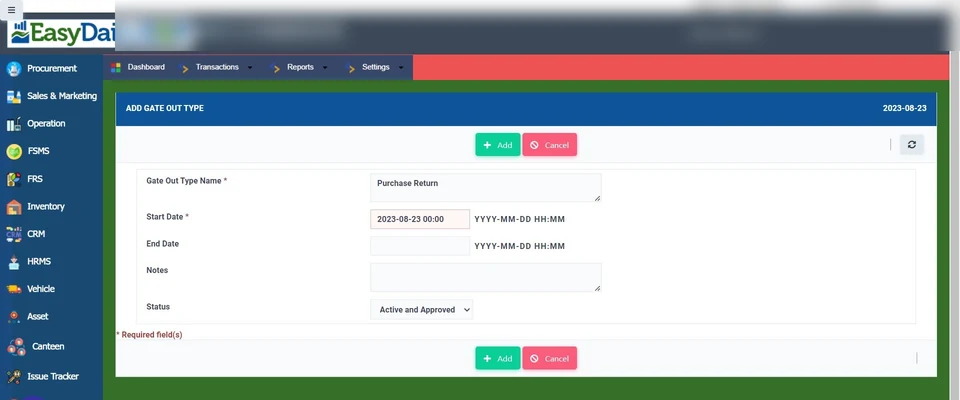
  3. Define the gate-out types used by stores and sales.
2

Gate-in

  1. Open Order Process › Gate In and add a new entry.
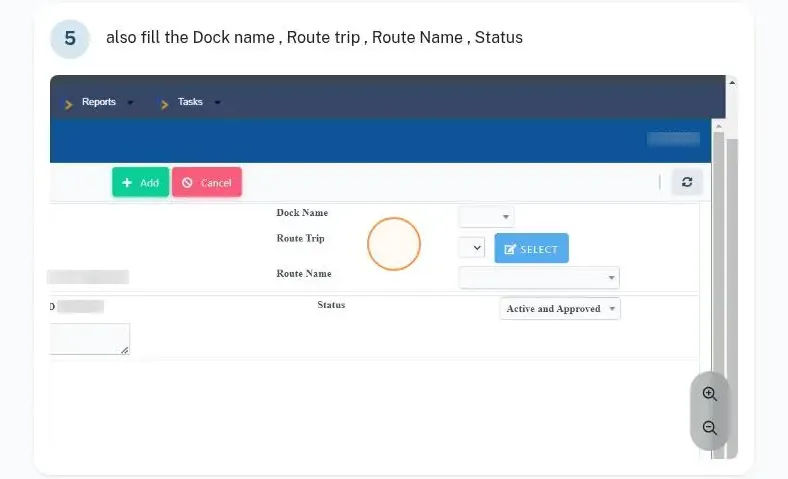
  2. Enter the vehicle, end km, scheduled in-time, dock, route trip, route and status, with the date and any notes.
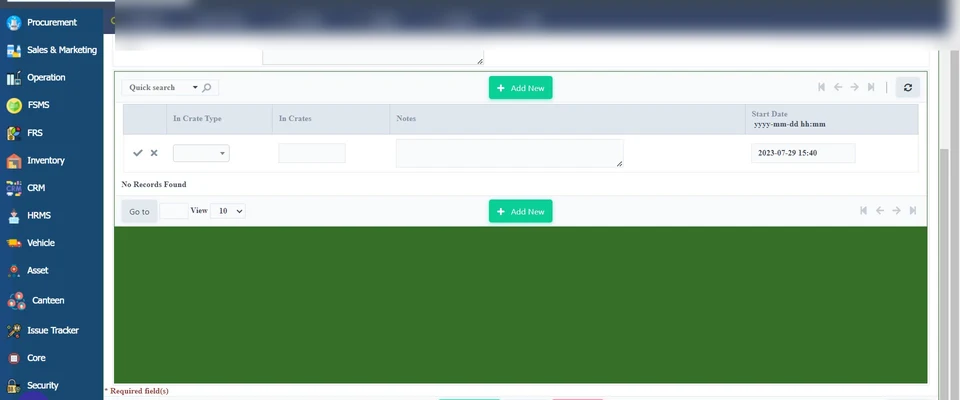
  3. Add the crates coming back in: crate type and number of crates.
3

Gate-out

  1. Open Order Process › Gate Out and add a new entry.
  2. Select the DC, vehicle, dock, date and status, and enter the route trip, route and start km.
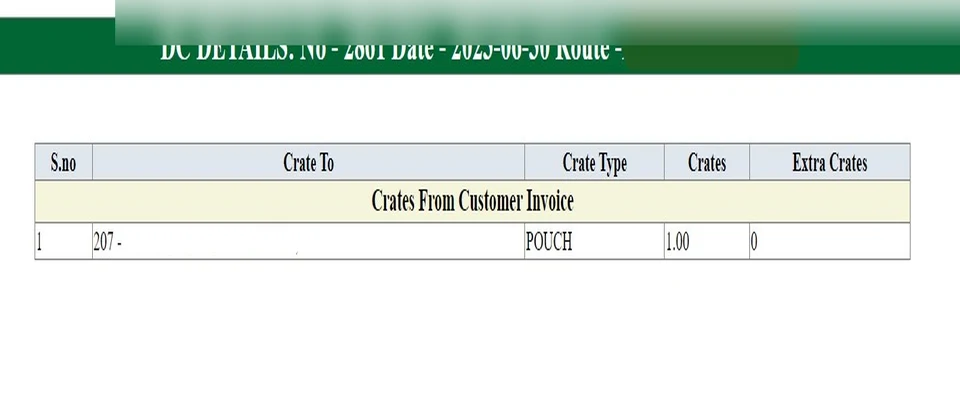
  3. Add the crates going out, including any extra crates. Crate Details then shows where crates went, by type, with extras.
Step-by-step guidesOpen the full guides in the Docs
In detail

Every function, with a picture

6 functions, each with a screen or diagram you can click to open full size, and a link to the step-by-step guide in the Docs. Key features are marked in orange.

Every visitor and gate function

Gate log for visitors and transport
Key feature

Gate log for visitors and transport

Visitors and vehicles are logged at the gate, with a dashboard for security.

See how →
Gate numbers and locations

Gate numbers and locations

Set up each gate with its number, location and status.

See how →
Gate-in and gate-out types

Gate-in and gate-out types

Define the kinds of gate movement used by stores and sales.

See how →
Gate-in against a purchase order

Gate-in against a purchase order

Stores record goods arriving at the gate against the purchase order.

See how →
Crate gate-in

Crate gate-in

Record crates coming back in, by crate type and quantity.

See how →
Gate-out for dispatch
Key feature

Gate-out for dispatch

Each dispatch leaves with its DC, vehicle, dock, route trip and start km.

See how →
See it in the demo tourThe Assets, vehicles, CRM and requests chapter shows these screens in the order the work happens.

Interactive step-by-step guides

Managing gate-in and gate-out types
Gate-out for dispatch

Keep exploring at your own pace

Every module page walks through the screens, reports and mobile apps in the same way, so you can see exactly how EasyDairyERP fits your dairy.

When you have seen enough, we are happy to show it to you live on our sample data: book a demo or call +91 94880 59495.

Next stop on the tour (24 of 27)Easy Customer Relationship ManagementContinue the tour →